Set Caller ID
How to set the caller ID displayed to call recipients — per SIP device, or forced across your entire account.
1. Set Caller ID for a Specific SIP Device
| 1 | Go to My Account → SIP Devices, select the desired SIP device by clicking its username from the list, and edit the Caller Number field to the number you want displayed to the call recipient. |
2. Force a Caller ID Across All Numbers on the Account
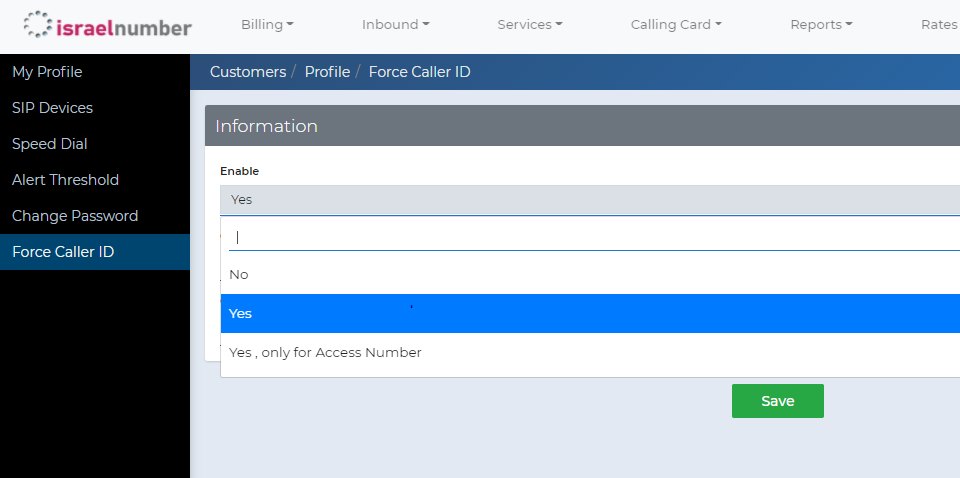
| 1 | This feature is called “Force Caller ID.” Once enabled, the system ignores each SIP device’s individual Caller Number and uses the forced caller ID for every call made from the account instead. |
| 2 | Select My Profile in the user selection box.
|

| 3 | Go to Force Caller ID in the user action list on the left side of the portal. |
| 4 | Select “Yes” at the Enable checkbox, then enter the caller ID name and caller ID number — this is what will display to the call recipient.
|