Creating and Managing SIP Devices
A SIP Device is how you make and receive calls through the Israelnumber system. Each SIP Device represents a phone or application (softphone) that connects to your account using SIP credentials.
What Is a SIP Device
A SIP Device is how you make and receive calls through the Israelnumber system. Each SIP Device represents a phone or application (softphone) that connects to your account using SIP credentials. You can create as many devices as you need — for example, one per user, a desk phone, or a mobile app.
Zoiper is just one example. You can use any compatible softphone or SIP phone. For a sample walkthrough with Zoiper, see: Zoiper Registration Solution for Mobile
Creating a SIP Device
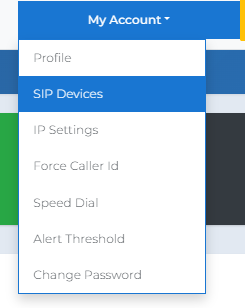
In the top menu, click My Account → SIP Devices.
Creating a New Endpoint (SIP IP Device)
Click Create. In the window that opens, you’ll see the Create SIP Device fields — review them (below) and click Save.
- Username — The username entered in the SIP app/phone (not your portal password).
- Password — The SIP password entered in the app/phone.
- Caller Name — The name displayed on outbound calls (if supported).
- Caller Number — The number displayed as Caller ID (if approved in settings/routing).
- Recording — Optional: choose recording if needed (can be left blank).
- Status — Set to Active so the device is enabled.
- Voicemail Options → Enable — Turns on voicemail for the device.
- Voicemail Options → Password — The voicemail access code.
- Mail To — The email address for receiving voicemail notifications (if configured).
- Attach File — Sends the voicemail recording as an attachment (when enabled).
Confirming the Device Was Created
- After saving, the new device will appear in the list.
- Confirm the Status toggle is set to ON.
Advanced: Call Routing (Optional)
- Advanced settings become available only after the device has been saved.
- In the SIP Devices list, click the blue ℹ️ icon in the Advance column next to the relevant device.
- Call Forward — Forwards incoming calls to another destination before the device rings.
- No Answer — Where to forward if the device doesn’t answer.
- On Busy — Where to forward if the device is already on a call.
- Not Registered — Where to forward if the device is disconnected/not registered.
- Enabled / Disabled — Turns each rule on/off.
- Destination Type (e.g., Extension) — The type of destination being forwarded to.
- Destination — Selecting the specific destination (varies by destination type).
- Call Waiting — Allows receiving an additional call while already on one.
- Pickup Group List / Allow Pickup Group List — Optional, for Pickup Groups (see the Pickup Group guide).
- Follow Me — Optional: rings additional destinations per your configuration (including Timeout).
- Timeout — How long to ring each destination before continuing (when Follow Me is active).
When finished, click Save to save the settings.
Need help? Contact support@pbxme.com or WhatsApp +972 55-966-4944 (WhatsApp only, no calls).