Zoiper Softphone Setup (Mobile)
How to register your PBXme SIP device on the Zoiper mobile softphone.
| 1 | Download the Zoiper application to your phone. On Android, look for “Zoiper IAX SIP VOIP Softphone” — its logo looks like this:
|

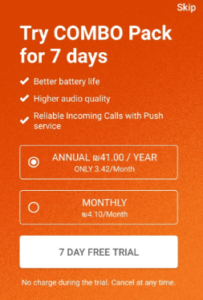
| 2 | Agree to the terms & conditions, then skip the promotion page.
|

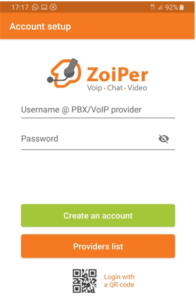
| 3 | On the next screen, enter your username and password — these were sent to you by email when your account was created. Click “Create an account.” You can find your SIP device details directly in your account management portal via Account → SIP Device. There, you can also create new SIP devices and use their given details in Zoiper. A SIP device’s details include a username, password, and user-domain, all found on the same SIP Devices page.
|
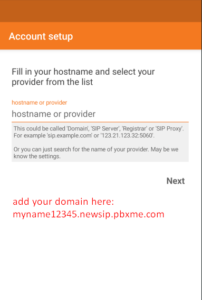
| 4 | On the next page, enter your domain. Make sure you do not include “https://” in the domain name.
|
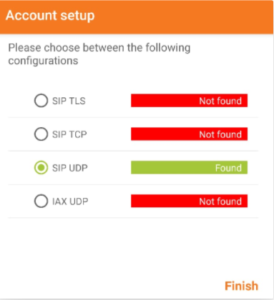
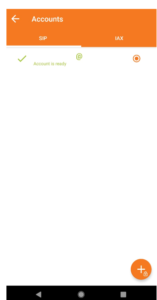
| 5 | Once connected, the UDP SIP-signaling indicator should turn green — this confirms Zoiper has connected via UDP, which is what we’re looking for.
|
| 6 | Once connected, make sure to top up your account with credit in order to make calls from your extension. See Adding Funds to Your Balance for instructions. |