SIP devices are your access for dialing through the PBXME system. Each SIP device or extension can be connected to with an app (a “softphone”) that connects to your account using SIP credentials. You can create as many SIP devices as you need—for example, one per user, desk phone, or mobile app.
Zoiper is just one example of a softphone. You can use any SIP-compatible softphone or IP phone. For a Zoiper setup example, see: Zoiper Registration Solution for Mobile
Create a SIP Device
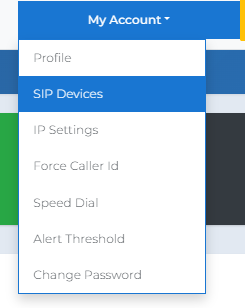
Go to SIP Devices
From the top menu, click My Account → SIP Devices.
Create a new SIP Device
Click Create.
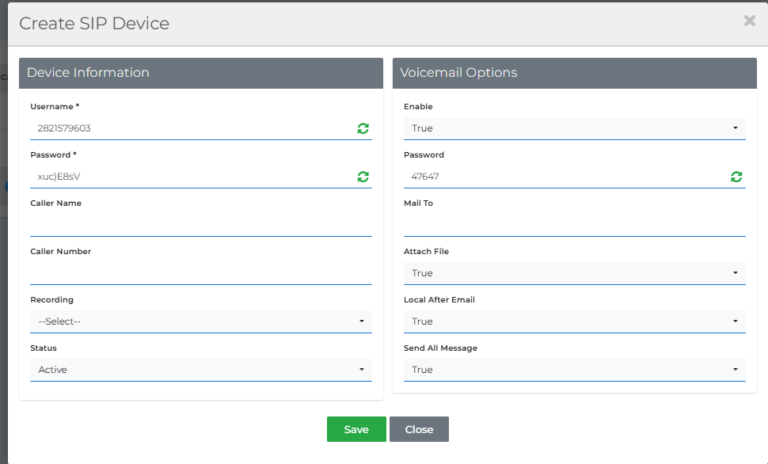
In the Create SIP Device window, review/fill the fields below, then click Save.\\
Username – The SIP username you’ll enter in your softphone/IP phone (not your portal login).
Password – The SIP password you’ll enter in your softphone/IP phone.
Caller Name – The name shown to the called party (if supported by the destination).
Caller Number – The number presented to the called party (Caller ID), if allowed by your routing/settings.
Recording – Optional: choose a Recording to use as voicemail intro (leave blank if not needed).
Status – Set to Active to enable the device.
Voicemail Options → Enable – Turns voicemail on for this SIP device.
Voicemail Options → Password – PIN used to access voicemail (if enabled).
Voicemail Options → Mail To – Email address that receives voicemail notifications/attachments (if configured).
Attach File – Sends the voicemail audio file as an email attachment (when enabled).
Confirm the device was created
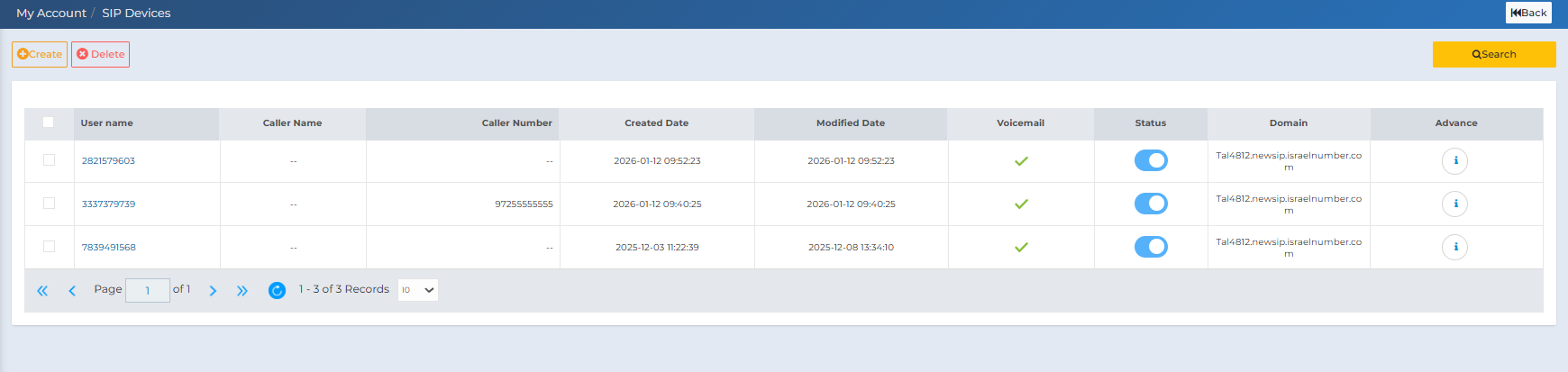
After saving, your new SIP device will appear in the SIP Devices list.
Make sure Status is enabled (toggle is ON).
Advanced: Call Routing (Optional)
Advanced settings are available only after the SIP device is saved.
On the SIP Devices list, click the blue ℹ️ icon under the Advance column for the SIP device you want to configure.
Blue ℹ️ icon under Advance
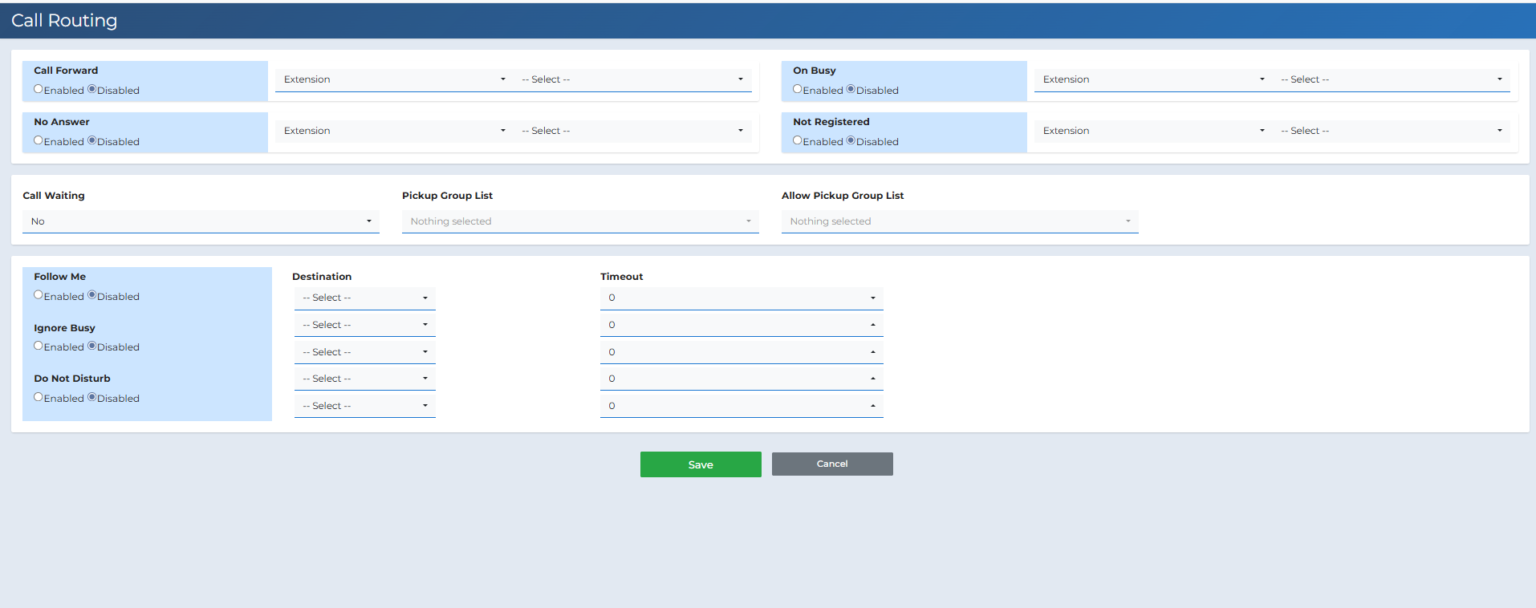
Call Forward – Redirects incoming calls to another destination before ringing this device.
No Answer – Where calls go if this device doesn’t answer.
On Busy – Where calls go if the device is already on a call.
Not Registered – Where calls go if the device is offline/not registered.
Enabled / Disabled – Turns that rule on or off.
Destination Type (e.g., Extension) – The type of destination you’re routing to.
Destination (dropdown) – The specific destination you choose (depends on the Destination Type).
Call Waiting – Allows this device to receive another call while already on a call.
Pickup Group List / Allow Pickup Group List – Optional: used for Pickup Groups (see the Pickup Group guide).
Follow Me – Optional: rings additional destinations based on the configured destinations and timeouts.
Timeout – How long to ring each Follow Me destination before moving on (when enabled).
When finished, click Save to apply the Call Routing settings.
Need help?
If you need assistance, contact support@pbxme.com or WhatsApp +972 55-966-4944 (WhatsApp only, no calls).